
If you don't know it, have a look at http://www.photools.com/
These Scripts can be used any way, but also without any kind of warranty!
If you don't agree, please leave now.
 = new Script
 = updated Script
Multi Database Transmission V 1.2 (06-Jun-2003) - This script transmits Images from a SourceDB to a TargetDB, preserving all Category-Assignments and Property-Entries. (And, *g*, if Mario would give us an updated Timestamp for the DatabaseImageRecords, we could merge Databases by checking which Entry is newer. Think about mobile IMatch.)
Remove Empty Categories from Database V 1.0 (30-May-2003) - This script removes all 'empty'-Categories from the active Database.
OffLineCache Garbage Collector V 1.0 (28-Jun-2003) - This script checks all existing Images in OfflineCacheFolder of the active Database and deletes ownerless OLC-Images. Additionally you can select some Categories from which you want delete the Images OfflineCache-pendants.
Photoshop Conversion (PS 5.5 + 6) V 0.9 (02-Jul-2003) - This Script combines the ManagementPower of IMatch with the ImageManipulationPower of Adobes Photoshop 6.0 in an easy to use way. This Script I have written together with Klaus Schwarzburg. Many thanks for your help, Klaus.
lcms Webgallery Creator V 0.1 (05-Oct-2002) - This script enhance the original Webgallery-Creator-Script with an ICC-Conversion-feature.
little Batch Converter V 1.2 (26-Jun-2003) - This script create resized copies, optionally with ICC-Conversion for Tiff- and Jpeg-sources. Can work with OfflineCacheImages instead of originals and can transmit all Property-, Category- and IPTC-data to the copies.
Registry Functions V 1.0 (01-Nov-2002) - A littleHelper-Script to put and retrieve Data to/from Registry in its correct DataTypes. VB usually provides only the StringType. With this Lib you can store every DataType to Registry (Byte, Integer, Long, Double, Decimal, Boolean, Variant, ...).
Debug Messages V 1.0 (08-Nov-2002) - A littleHelper-Script which handles Debugoutput in Priorityclasses. With this you can have good Informationoutput when you develope a Script and a less or no Output when run the Script in Productivity-Mode. Your DebugmessagePoints can stay in code without any (auswirkung). Usefull for future changes on your code.
Explanation
MainScript: hn_PhotoshopConversion.bas
Needed Modules: [hnFncPSOLE.lib]
[hnFncUtils.lib]
[hnClsRegKey.cls]
[hnPSoleDeclarations.lib]
[hnPublicDeclarations.lib]
1) Unzip the package and copy the files to your
IMatch Scriptfolder.
In a Subfolder in the IMatchScriptfolder named "\hn273_Public\" should be the hn_PhotoshopConversion.bas and hn_PhotoshopConversion.bai,
a Subfolder named "\hn273_Public\lib\" must contain 6 Classes/Libfiles for that Script:
- hnFncPSOLE.lib
- hnFncUtils.lib
- hnClsRegKey.cls
- hnClsWorkFlow.cls
- hnPSoleDeclarations.lib
- hnPublicDeclarations.lib
- and a Subfolder named "\hn273_Public\icons\" with some bitmapfiles.
2) Open the file hnFncPSOLE.lib and the hnPSoleDeclarations.lib in the Sripteditor to embedd the needed Adobe-Photoshop-Type Library via "Edit -> Preferences". And also open the file hnFncUtils.lib in the Scripteditor to embedd the needed IMatch3-Scripthelper-Typelibrary.
3) If you want to work with ICC-Profiles you
must create a Namelist of the ICC-Profiles you use with Photoshop.
Sorry for that, but we haven't found a way to get this Namelist out of Photoshop.
On first start of the Script a ICC-Dialog Window will appear automatically. There you
can create this needed file in two ways. You can type each name into a Textfield
and add it to the list, or you can open your texteditor to create/edit the file.
But in both ways you have to type the names of the Profiles in a casesensitive way.
The names must be the names as they appears in Photoshop Dialogs, (not the filenames
of the profiles).
5) Run the Script.
... or ...
4) Read the following explanation of available options in the Script and then 5) run it!
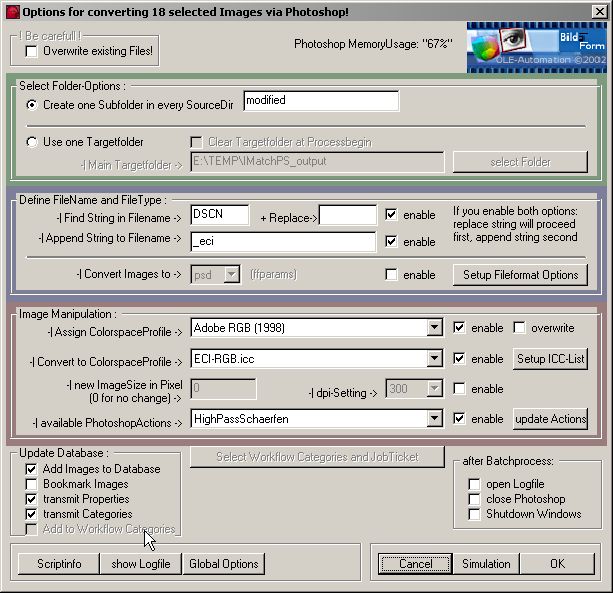
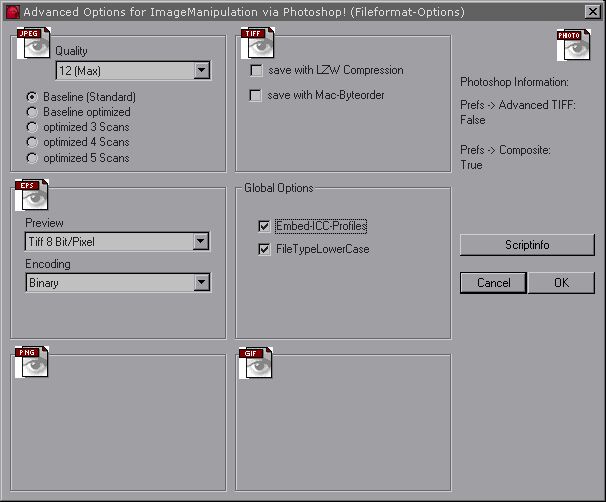
Ok, maybe that most of the Dialogoptions are selfexplanatory. But you find most Informations for these and also some none-selfexplanatory in the following DialogPictures.
If you have enabled JavaScript in your Browser the DialogPictures are mousesensitive
for you.
Move your mouse over the option you need information from and a little popup will
appear with it.
Some Buttons are clickable! With this you can switch between the different Dialogs, like it would behave when you run the Script =:-)
If you have disabled JavaScript in your Browser you can use the DialogPictures
by clicking on each option.
This brings you to a short description. From there you always can go back to the
Dialog using the (TOP)-link.
Cancel Button
Do not save changed Settings and abort the Script.
(TOP)
Simulation Button
Saves all Settings,
checks for filename conflicts and opens Logfile in TextEditor.
(TOP)
OK Button
Saves all Settings and runs the Script.
(TOP)
Overwrite original files
With this option you work directly on your original files. Use carefully and concentrated.
(TOP)
Create Subfolder
This option creates a Subfolder in every Sourcedirectory.
(TOP)
Create Subfolder
Here you have to type in the Subfoldername.
(TOP)
Use one Targetfolder
This Option collects all resulting files in one Targetfolder.
(TOP)
Use one Targetfolder
Here you can type in the Fullpath to the Targetfolder, if it does not exist the
Script automatically create it.
(TOP)
Use one Targetfolder
This opens a BrowseforFolder-Dialog which lets you select an existing Folder as
Targetfolder.
(TOP)
Use one Targetfolder
This option clears ALL files in Targetfolder and its Subfolders at Processbegin.
(TOP)
Filename and Fileformat
With this option you can append a String to the filenames.
(TOP)
Filename and Fileformat
Here you can select a Destination-Fileformat. If you want to save the resulting
files in every files Sourceformat you have to leave this unchecked.
(TOP)
Filename and Fileformat
This gives you a short Information for the selected Targetfileformat of your settings in the Fileformat-Dialog. SO you have not to open it for controlling your settings every time you change the format.
(TOP)
Filename and Fileformat
This opens the Fileformat-Dialog.
(TOP)
Assign ICC-Profile
Assign the selected Profile to the images. This option do no conversion, it only
assign a Profile to an image.
(TOP)
Assign ICC-Profile
If the file already has an embedded Profile, with this checked it will be ignored.
(TOP)
Convert to ICC-Profile
This converts the images to the Colorspace described in the selected Profile.
(TOP)
Scale Image
If you want to scale your images to a new size please type in the max-Pixelsize.
The Files will be scaled with respect to the Imageratio. If you want use only the
dpi-Setting without scaling the image type in: 0
Also only downscaling is provided, no upscaling!
(TOP)
Set dpi-Value
Select a resolution (dpi) for your resulting images. If you only want to set another
dpi-resolution without scaling your images please type in a 0 (zero) in NewSizeField.
(TOP)
Photoshop Actions
Here you find a list of all your PhotoshopActions.
(TOP)
Photoshop Actions
Because Photoshop mostly've crashed if we tried to readout the Actionslist for a
secondtime, we decide for the following solution. The Photoshop Actions will be readout
at the first start of this Script and stored in a Textfile. Only if you have changed
your Actions in Photoshop you need to update the list.
(TOP)
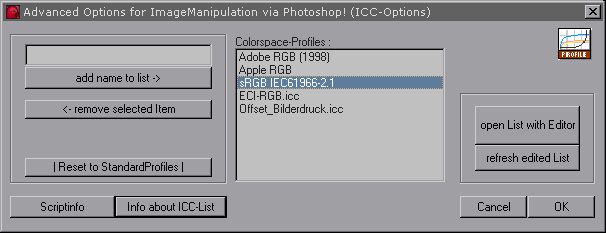
ICC-Profile-List
This opens the Dialog in which you can create your ICC-Profile-List.
(TOP)
Global-Script-Options
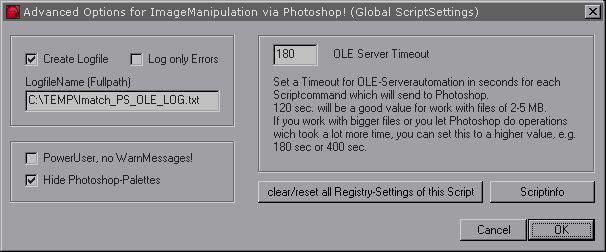
This opens a Dialog for some global Script-Options.
(TOP)
Enables or disables this Option.
(TOP)
Photoshop-Informations
Here you find the Information how much in Percentage of your SystemRam Photoshop
uses.
(TOP)
Script-Info
Opens this Page or a Page like this one in your Standard-HTML-Browser.
(TOP)
Cancel-Button
Closes this Dialog without saving and goes back to Main-Dialog.
(TOP)
OK-Button
Saves the Settings, closes Dialog and goes back to Main-Dialog.
(TOP)
Add Profile to List
Here you must type in the Name of the ICC-Profile as it appears in Photoshop-Dialogs
(casesensitive).
(TOP)
Add Profile to List
With his Button the Name will added to the List.
(TOP)
Remove Profile from List
This Button removes the selected Item from List.
(TOP)
Standard-Profiles
This Button creates a Standardlist containing 3 ICC-Names: Adobe-RGB, Apple-RGB
and sRGB.
!It overwrites the current List!
(TOP)
List in Editor
Here you can open your List with your Standard TextEditor.
(TOP)
List in Editor
After you have edit the List with your Texteditor a manually refresh of the Listbox
is needed before you press the OK- or Cancel-Button.
(TOP)
ICC-ProfileList
Because we have not found a way to get out the Profiles-List of Photoshop, you have
to create your List manually.
(TOP)
Create Logfile
To create a Logfile with Informations and Errors check this Box.
(TOP)
Create Logfile
If you want only log Errors check this Box too.
(TOP)
Create Logfile
Type in FullpathName of Logfile.
(TOP)
Power-User
Disables additional confirmations and warnmessages!
(TOP)
No Palettes
With this Option you can enable to hide all Photoshop-Palettes. For that we use
the sendkey-method. In Photoshop you can toggle visiblility of all Palettes with
the TAB-Button. Because of a Bug in AdobeTypeLibrary that makes all Palettes visible
by using the AppActivate-Function, also if they have the hidden-status, we have
to send two Tabs at every second using of AppActivate. SO, if you want to hide the
Palettes but they are already visible, please focus Photoshop manually and press
once the TAB-Button.
(TOP)
OLE-Server-Timeout
Type in the seconds for the Server-Timeout. For every action which is send from
Imatch to Photoshop, the script waits maximum this amount of seconds for a ResultCode.
If Photoshop not returns the ResultCode (Success or Error) of an Action within this
time a Messagesbox popups where the user is asked to cancel or wait and focus manually
to Photoshop after it has ends the current operation. This may only happen if an
unexpected Error occures [Hope not!] or if Photoshop is running on timeintensive
operations.
(TOP)
Reset all Settings
This resets all Options to Standardvalues like they are at first Scriptstart.
(TOP)